Mastering Word Processing Basics
Year 10 Technology Digital Literacy Skills 120-minute session
What is Word Processing?
Think about your daily digital activities Where have you encountered word processing? What examples can you share from school or home?

Word Processing Interface
Ribbons and toolbars contain essential tools Menu systems organize functions logically Status bar shows document information Navigation area helps move through documents

Essential Tools Exploration
Follow along on your computer Practice changing font styles and sizes Try bold, italic, and underline formatting Experiment with text alignment options Create bullet points and numbered lists
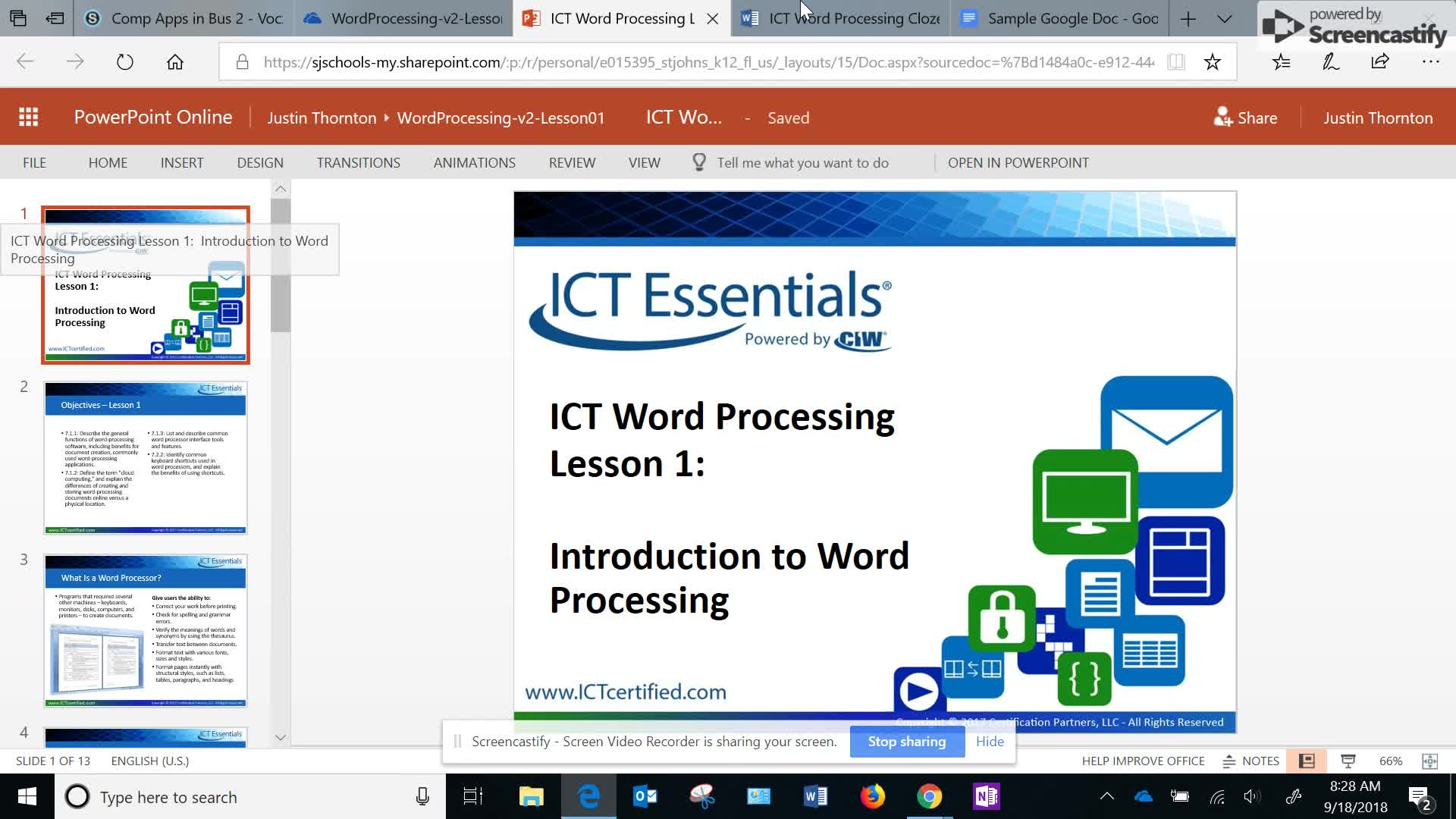
Word Processing Tools Overview
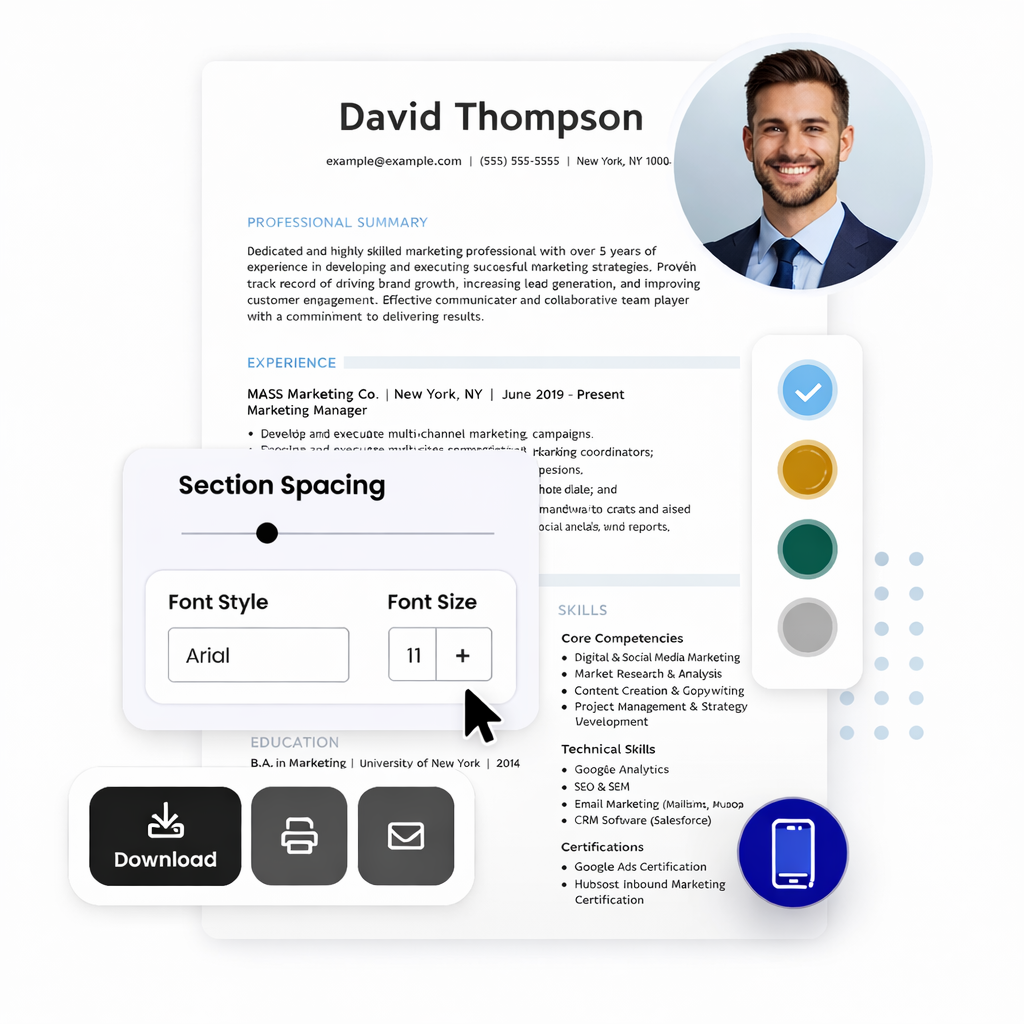
Create Your CV
Create a one-page CV or introductory letter Use proper font selection and sizing Apply text alignment and formatting Include bullet points for skills or achievements Run spell check before finishing

Peer Review Activity
{"left":"Exchange documents with a partner\nUse the assessment checklist provided\nCheck for proper formatting and presentation","right":"Provide constructive feedback\nFocus on tool usage and document neatness\nDiscuss improvements together"}

Digital Responsibility
Save your work regularly Back up important documents Respect content ownership and copyright Share documents responsibly and safely