
Excel Formulas: Sum, Average, Mode
Year 7 Technology Learning Essential Spreadsheet Functions South Australian Curriculum

Learning Intention & Success Criteria
Learning Intention: To understand and apply SUM, AVERAGE, and MODE formulas in Excel spreadsheets Success Criteria: I can enter SUM formulas correctly Success Criteria: I can calculate averages using AVERAGE function Success Criteria: I can find the most common value using MODE function Success Criteria: I can explain when to use each formula

What Are Excel Formulas?
Formulas are instructions that tell Excel to perform calculations All formulas start with an equals sign (=) Formulas can work with numbers, cell references, or ranges Excel automatically updates results when data changes Formulas save time and reduce errors in calculations

Quick Check: Formula Basics
Look at your partner and explain: What symbol starts every Excel formula? Why are formulas useful? Share one example of when you might need to add numbers
The SUM Function
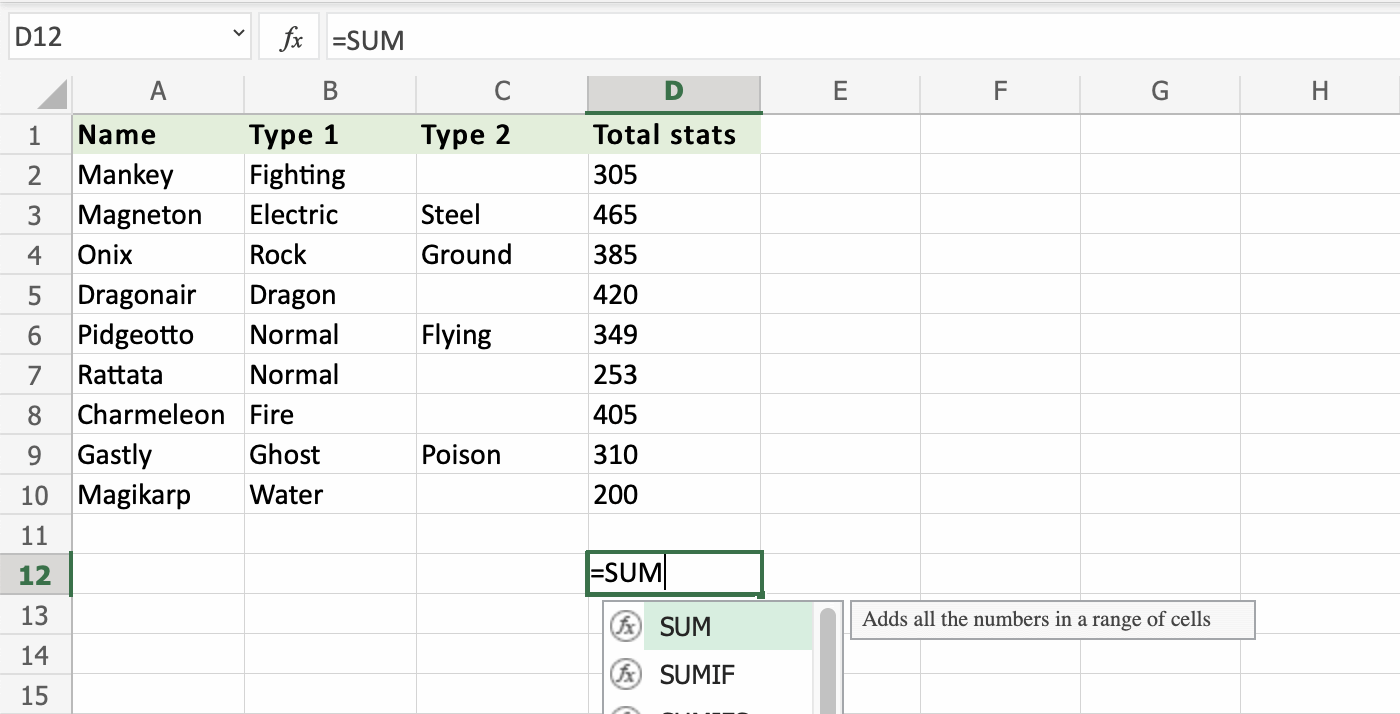
SUM adds up all numbers in selected cells Syntax: =SUM(range) or =SUM(cell1, cell2, cell3) Example: =SUM(A1:A10) adds cells A1 through A10 Shortcut: Select cells and press Alt + = (AutoSum) Perfect for totaling scores, money, or quantities
SUM Practice Activity
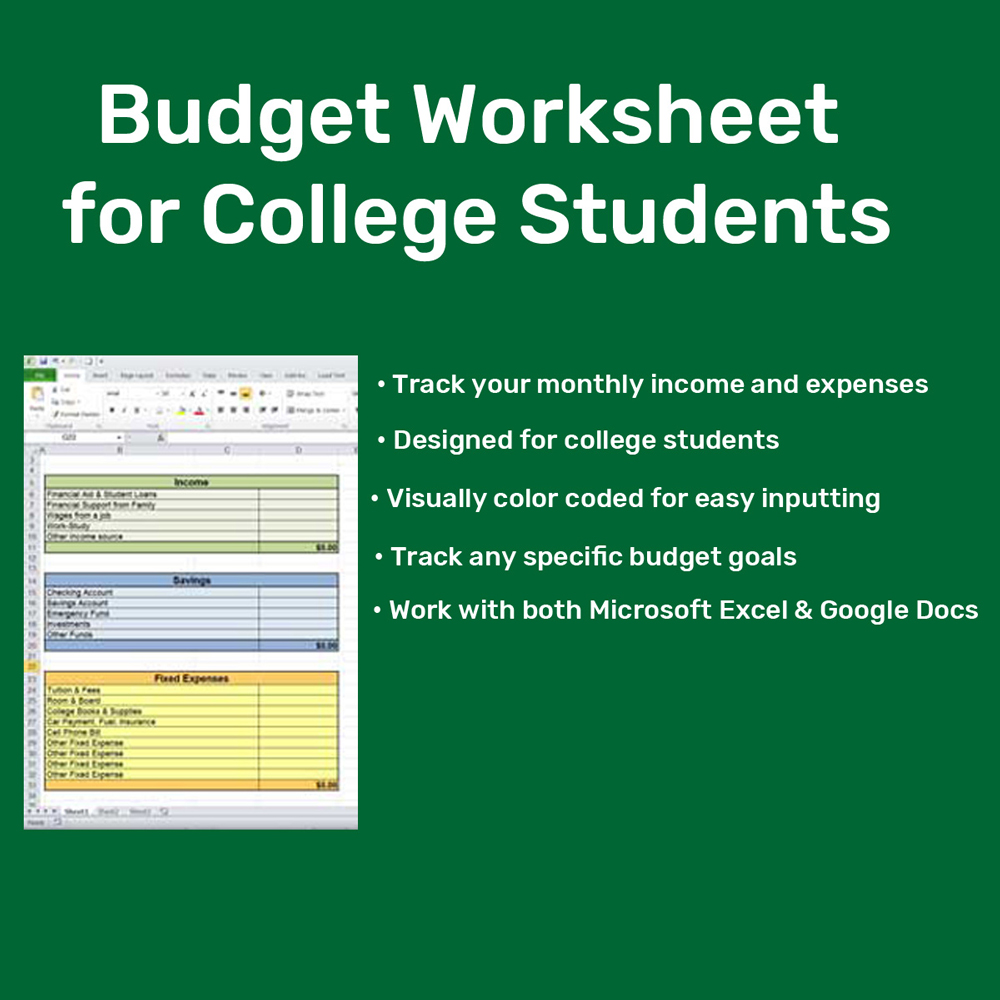
Open Excel and create a simple budget List 5 weekly expenses in column A Use SUM to calculate your total spending Try both =SUM(A1:A5) and AutoSum methods Extension: Add a monthly total using SUM

The AVERAGE Function
AVERAGE calculates the mean of selected numbers Syntax: =AVERAGE(range) or =AVERAGE(cell1, cell2, cell3) Example: =AVERAGE(B1:B10) finds mean of cells B1 through B10 Useful for finding typical values in data sets Common uses: test scores, temperatures, sales figures

SUM vs AVERAGE: When to Use Each
{"left":"Use SUM when you need the total amount\nExample: Total money earned\nExample: Total points scored\nExample: Total items sold","right":"Use AVERAGE when you need the typical value\nExample: Average test score\nExample: Average temperature\nExample: Average daily sales"}
The MODE Function
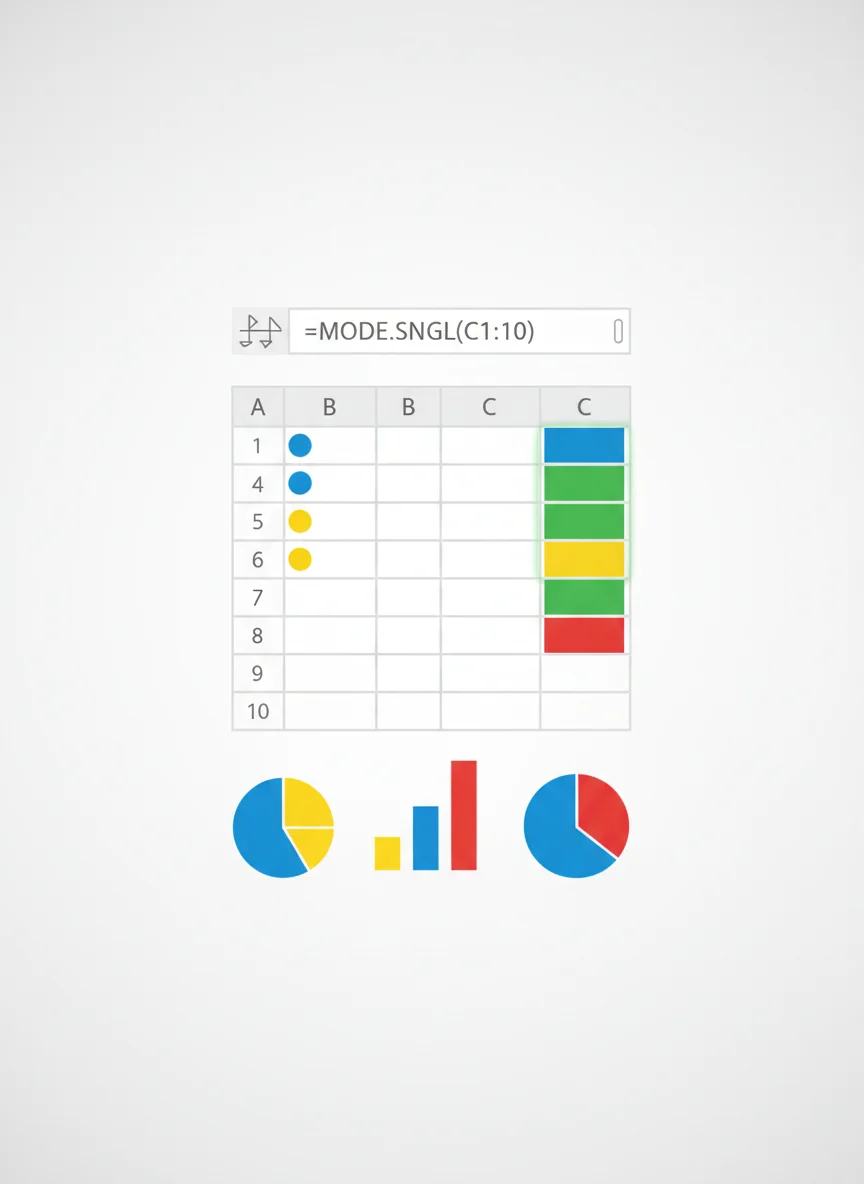
MODE finds the most frequently occurring value Syntax: =MODE.SNGL(range) for single mode Example: =MODE.SNGL(C1:C10) finds most common value Useful for finding popular choices or common outcomes Returns an error if no value appears more than once

Formula Challenge Question
A class collected data on hours of sleep per night: 8, 7, 8, 6, 9, 8, 7, 8, 5, 8 Which formula would you use to find: 1. Total hours of sleep for all students? 2. Average hours of sleep? 3. Most common amount of sleep?

Differentiation & Extension Strategies
For Support: Use cell highlighting and step-by-step guides For Dyslexia: Provide formula reference cards with large, clear fonts For Visual Learners: Color-code different formula types Extension Activity: Create a sports statistics spreadsheet Advanced Challenge: Combine multiple functions in one formula Real-world Application: Analyze school canteen sales data