
Earn Your Laptop Licence Level 1
Year 2 Digital Technology 90-minute lesson WALT: Use laptops safely and correctly

Licensed Laptop Users Need 3 Essential Skills
Year 2 Digital Technology 90-minute lesson WALT: Use laptops safely and correctly

Carrying Laptops Safely
Keep your tech investment protected with these smart moves: 🤲 Hold with both hands 💻 Keep the laptop closed 🚶 Walk, don't run 👀 Watch where you're going 🤗 Keep it close to your body Remember: A dropped laptop means lost work, expensive repairs, and no computer access until it's fixed!

Safe Carrying Practice
Practice carrying laptops around the classroom Follow the 5 safety rules Take turns with a partner Teacher will observe and give feedback
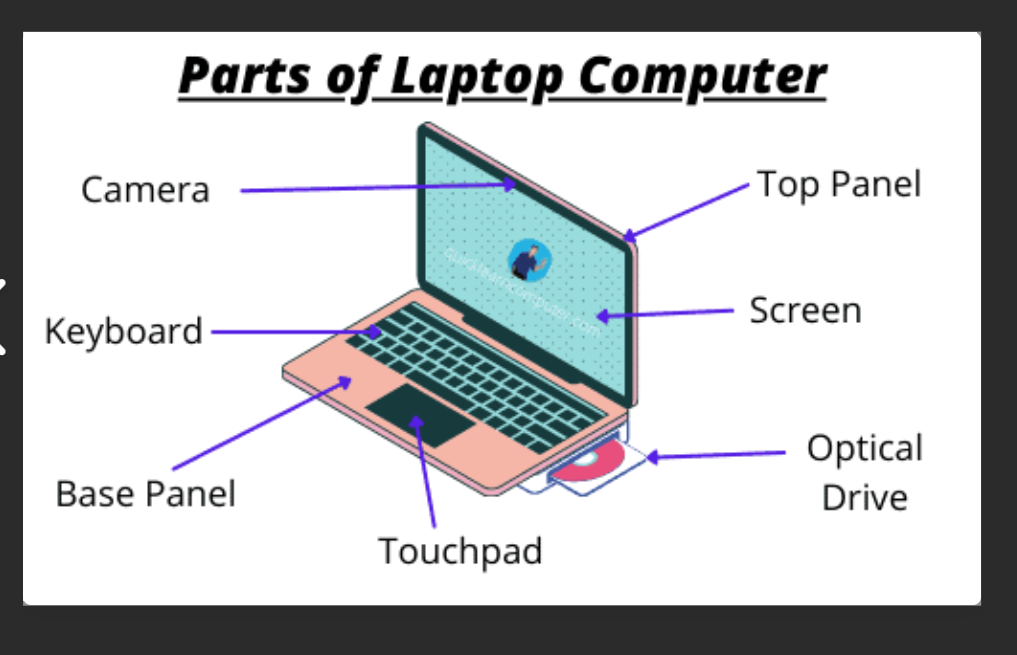
Know Your Laptop Parts
Screen - shows what you're doing Keyboard - for typing letters Trackpad - moves the cursor Power button - turns laptop on/off Speakers - for sound
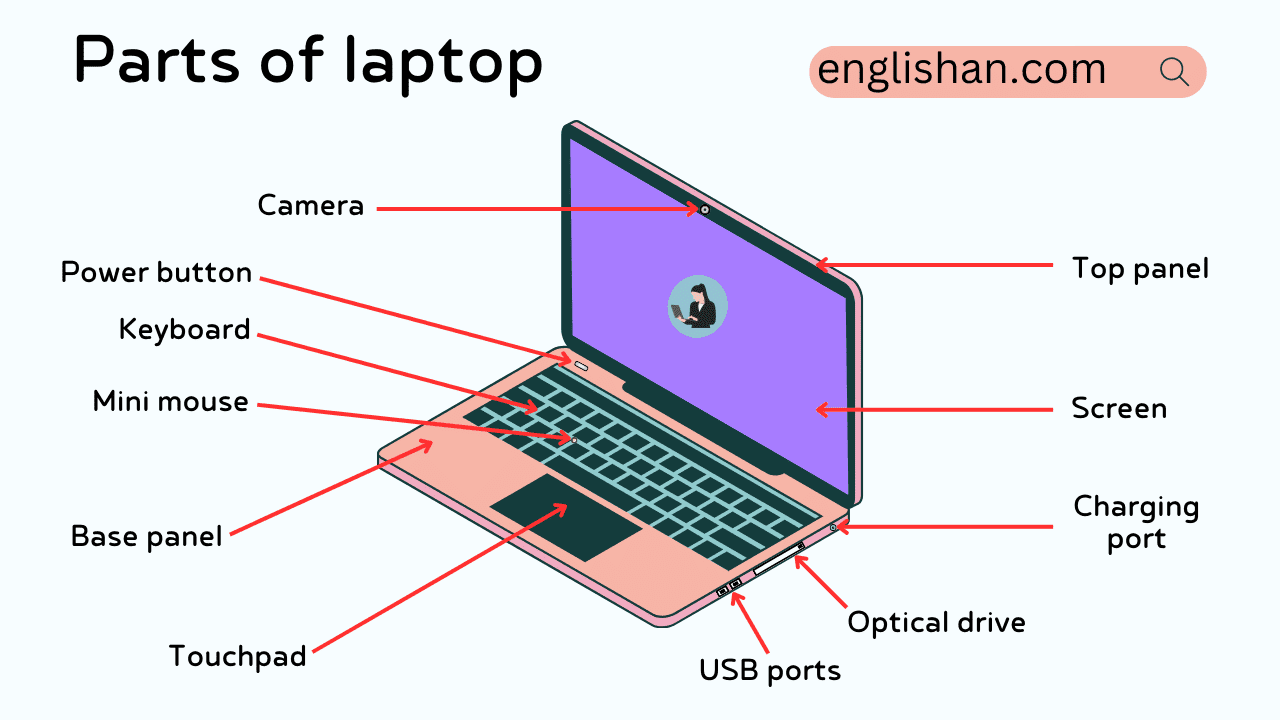
Laptop Parts Challenge
1. Press the power button 2. Wait for the login screen 3. Click on your name 4. Type your password carefully 5. Press Enter or click the arrow Username: fot.1 Pasword:

Signing In Steps
1. Press the power button 2. Wait for the login screen 3. Click on your name 4. Type your password carefully 5. Press Enter or click the arrow

Your Login Details
Username: fot.1 Password: forth26 Write these down carefully Keep your login safe
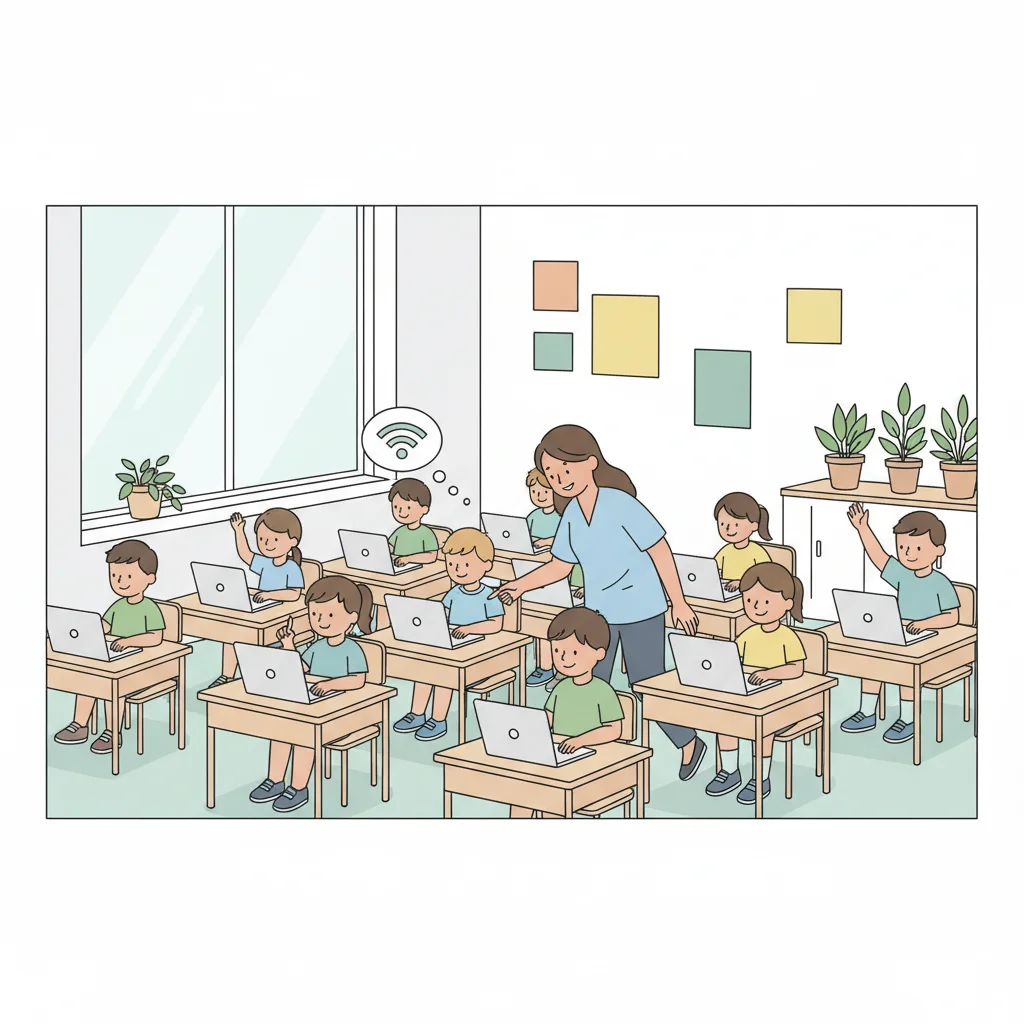
Guided Sign-In Practice
1. Press the power button 2. Wait for the login screen 3. Click on your name 4. Type your password carefully 5. Press Enter or click the arrow

Mini Station 1: Trackpad Games
Practice moving the cursor Try clicking and dragging Play simple online games Focus on smooth movements Take turns if sharing
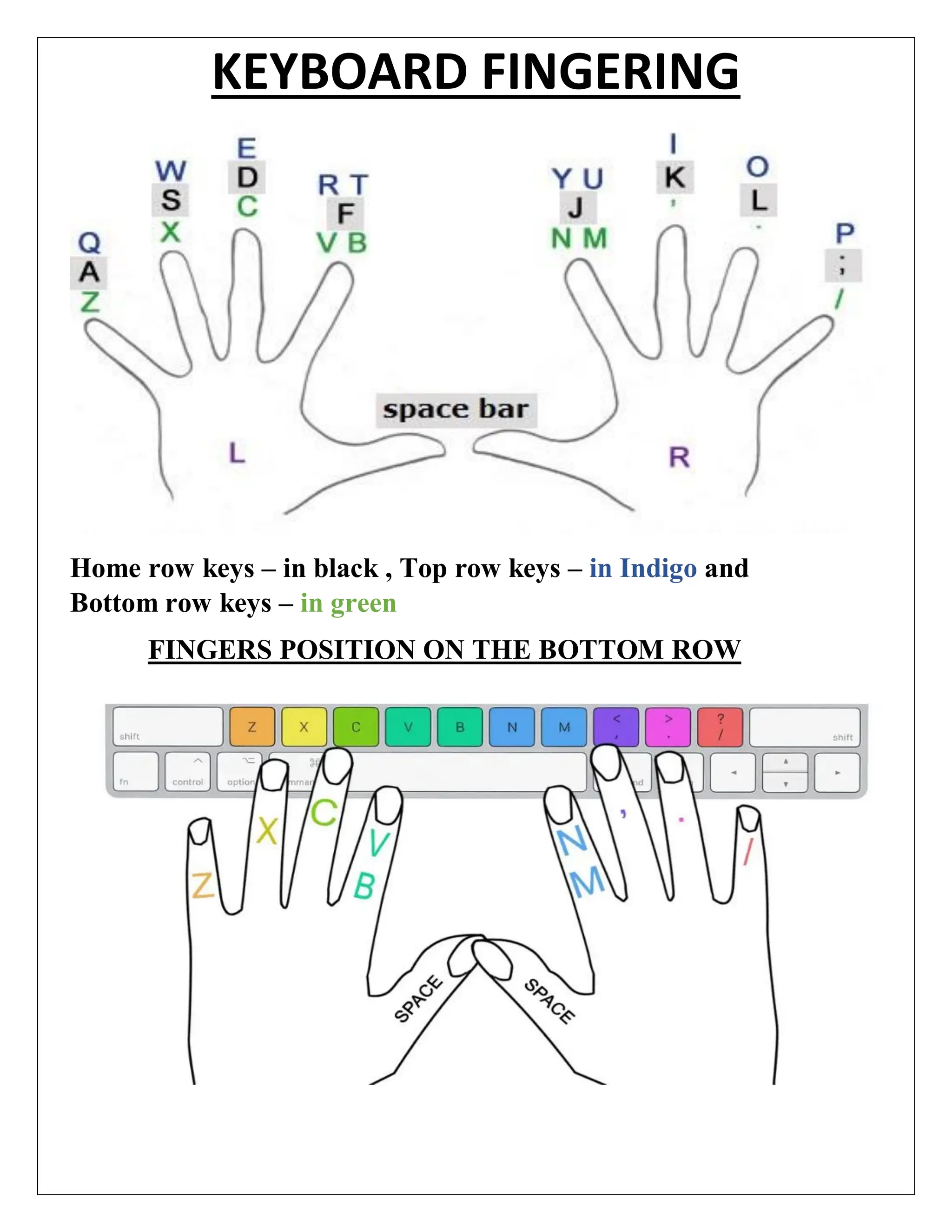
Mini Station 2: Keyboard Hunt
Find a word DocumentFind letters of your name Type your name slowly Look for number keys 1-10 Find the space bar Practice pressing keys gently

Mini Station 3: Start Menu Explorer
Click the Start button Look at all the programs Find the calculator Open and close different apps Always close properly when finished
3 more slides available after you open the deck.
Download all 15 slides