Coding a micro:bit Heart Rate Monitor
Exploring how our heart responds to exercise Learning to code with algorithms and data Year 6 Science and Technology

What is a micro:bit?
A small programmable computer Has LED lights, buttons, and sensors Can detect movement and touch Perfect for learning to code

What happens to your heart when you exercise?
Think about the last time you ran around How did your body feel? What changes did you notice?

Your Amazing Circulatory System
Heart pumps blood around your body Carries oxygen to your muscles Works harder during exercise Heart rate increases to deliver more oxygen

Let's Test Our Heart Rates!
Find your pulse on your wrist Count beats for 15 seconds Multiply by 4 to get beats per minute Record your resting heart rate

Introduction to Coding Concepts
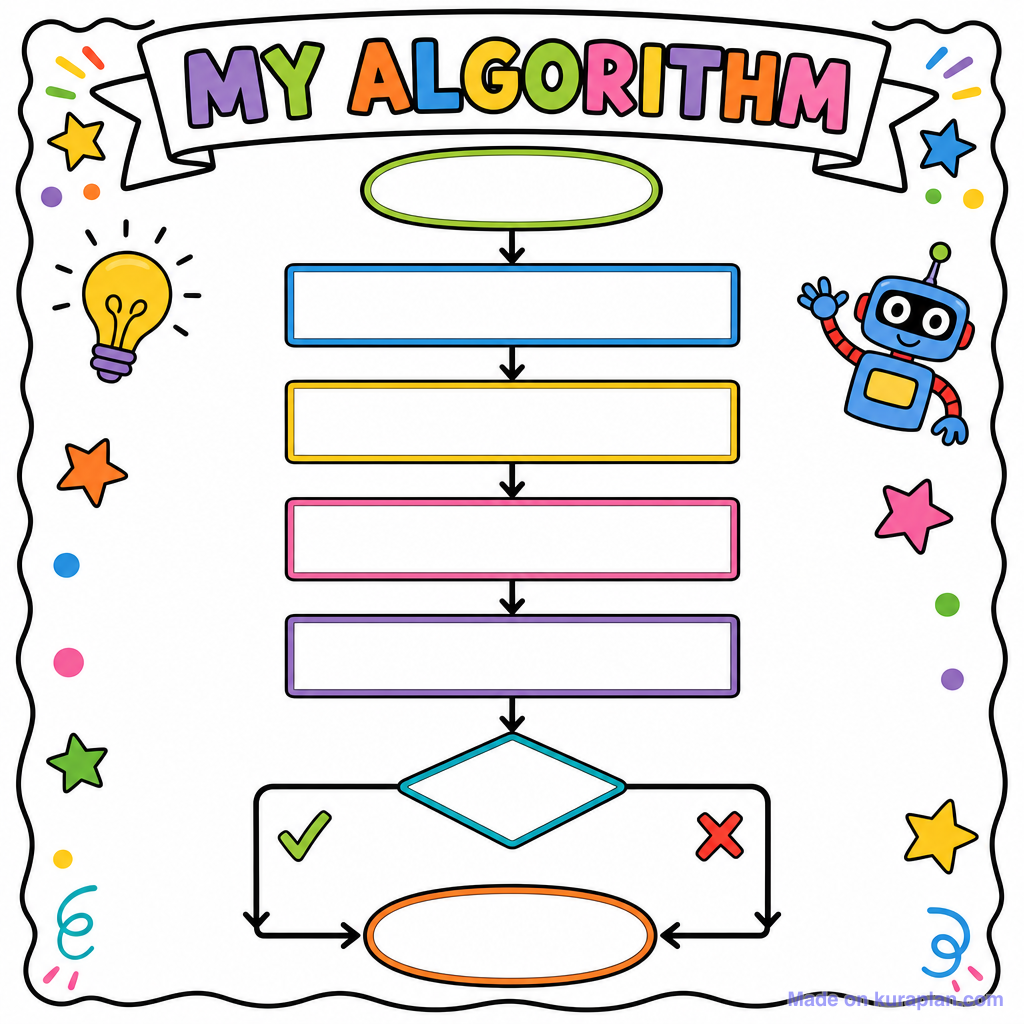
Algorithm: Step-by-step instructions Visual programming: Using blocks instead of text Variables: Storing data like heart rate numbers Iteration: Repeating actions

Microsoft MakeCode Interface

Planning Our Heart Rate Monitor
Display a heart animation Show different heart rates as numbers Use buttons to simulate exercise levels Create realistic heart rate ranges

Coding Challenge: Basic Heart Animation
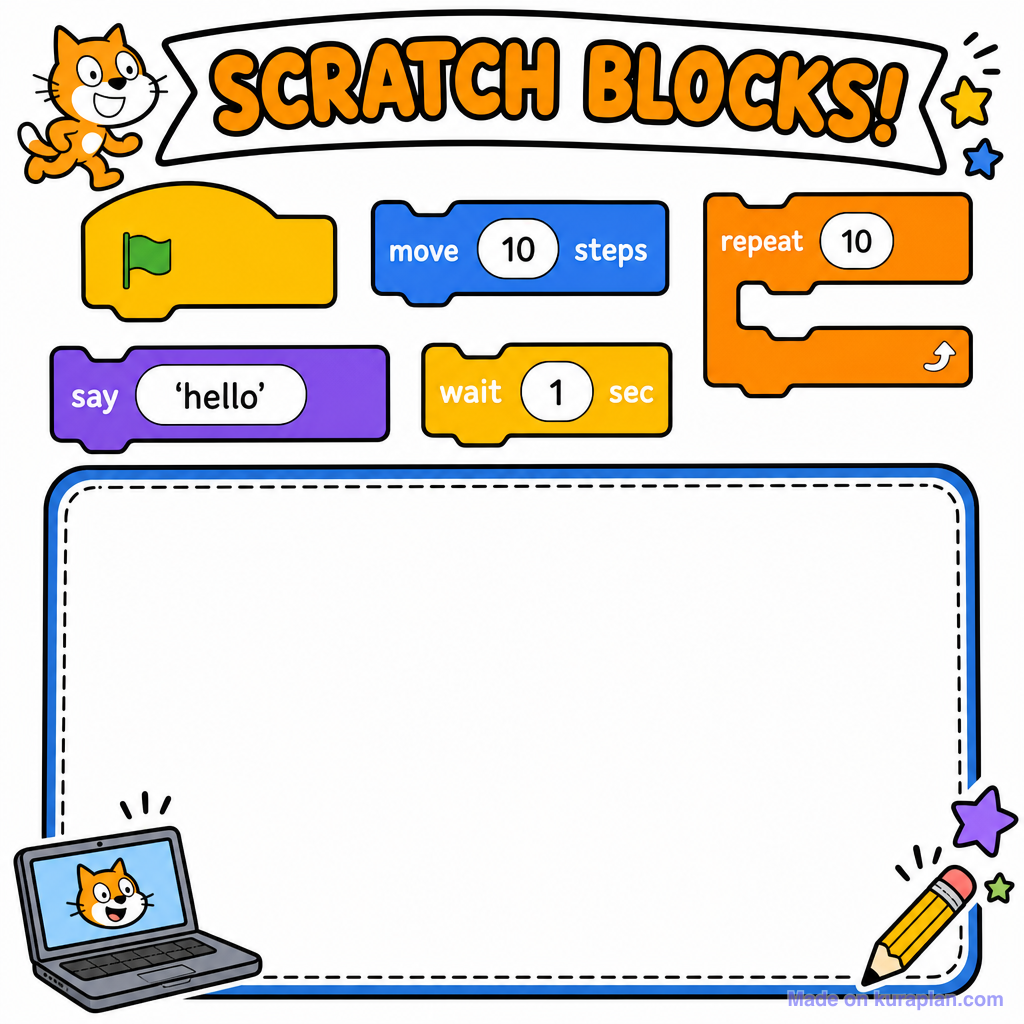
Create a beating heart using LED lights Use the 'show icon' block Add a 'pause' block for timing Test your animation in the simulator

Understanding Branching in Code
{"left":"IF button A is pressed\nTHEN show resting heart rate","right":"IF button B is pressed\nTHEN show exercise heart rate"}

Advanced Coding: Adding Heart Rate Data
Create variables for different heart rates Resting rate: 70-80 beats per minute Exercise rate: 120-140 beats per minute Use 'show number' blocks to display rates

Testing and Improving Our Code
Test both buttons work correctly Check heart rates are realistic Add more exercise levels if time permits Share your code with classmates
More Microbit slide decks
Other ready-to-teach decks on microbit.

Free Coding images
Drop these illustrations straight into your lesson.